
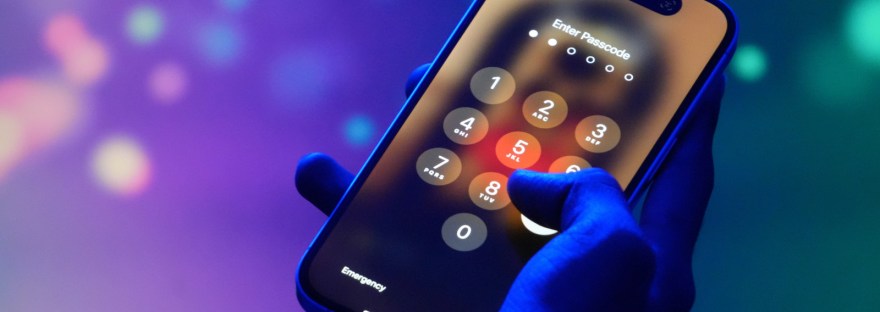
If you’re having trouble getting into your iPhone, you’ll need your old passcode or Apple Account password. Getting an ‘iPhone Unavailable’ message? Here’s how to fix it. Big Tech Apple Getting an ‘iPhone Unavailable’ message.
Here’s how to fix it You’ll need your old passcode or Apple Account password. The issue is a common one, caused by entering an incorrect passcode too many times. It’s a system meant as a safeguard against unwanted access, but it can just as easily be triggered by unintentional pocket presses or plain old forgetfulness.
Thankfully, there are several ways to get access to your iPhone again, though some are a bit more labor-intensive, depending on the circumstances of your lockout. How to fix an iPhone Unavailable message Tatiana Diuvbanova/Shutterstock Your options for an iPhone Unavailable error vary slightly depending on your iOS version, if you’ve changed your passcode recently and what other technology you have available. Use Passcode Reset If you’re using iOS 17 or later and have reset your phone’s passcode within the last 72 hours, you have the option to revert back to your old passcode to solve the issue.
After five incorrect passcode attempts, the iPhone Unavailable screen will appear, and you can select the Forgot Passcode option in the lower righthand corner Select Enter Previous Passcode After entering your previous passcode and unlocking your phone, you’ll immediately need to reset the passcode to a new number Reset your iPhone without a computer To reset your iPhone without a computer, you’ll need to be using iOS 15.2 or later, have Find My previously enabled, have an active cellular or Wi-Fi connection and know your Apple Account and password.
Discover more from ChuckysCarnage
Subscribe to get the latest posts sent to your email.

