
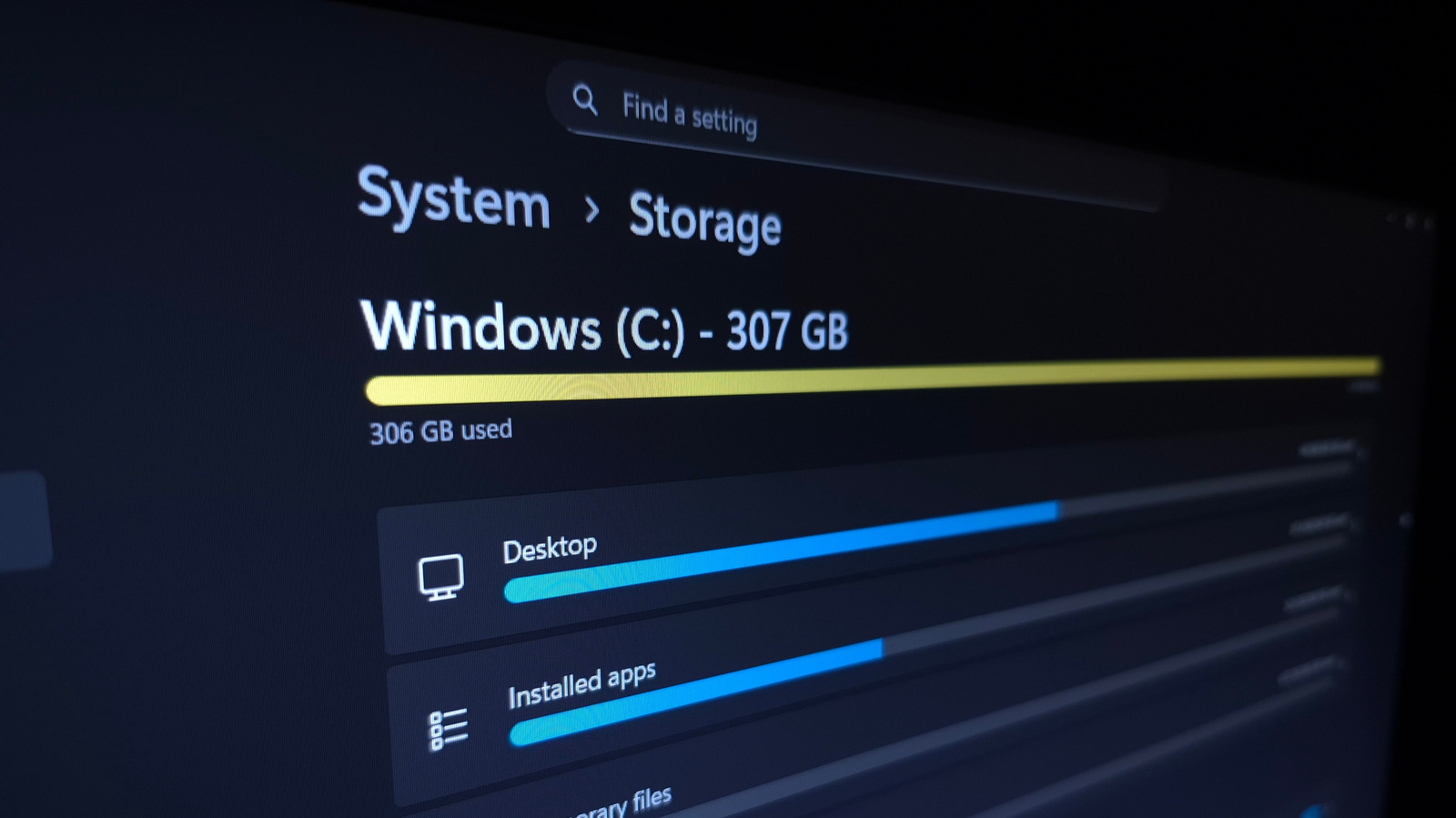
Use a methodical approach to see what’s using the most space on your PC and easily clean it up. How to see what’s taking up space on your Windows PC. Programs, photos, videos, games, downloads and your other items live alongside system data like temporary files and updates.
That’s not to mention duplicate files and other junk that serves no purpose. When you need to clean up some space in Windows, it’s easy to see what’s using the most storage. With this laid out, you can create the most room with the least effort, only dipping into more advanced methods if you’re really pressed for space.
Don’t go digging into folders at random; weeding out what’s monopolizing your space gives you more breathing room. The first step: Storage settings Let’s begin with Windows’ built-in storage management tool: press Win + I to open the Settings panel, then go to System > Storage. Here, you’ll see the total space in use on your main disk, along with a breakdown of what’s taking it.
Discover more from ChuckysCarnage
Subscribe to get the latest posts sent to your email.

