
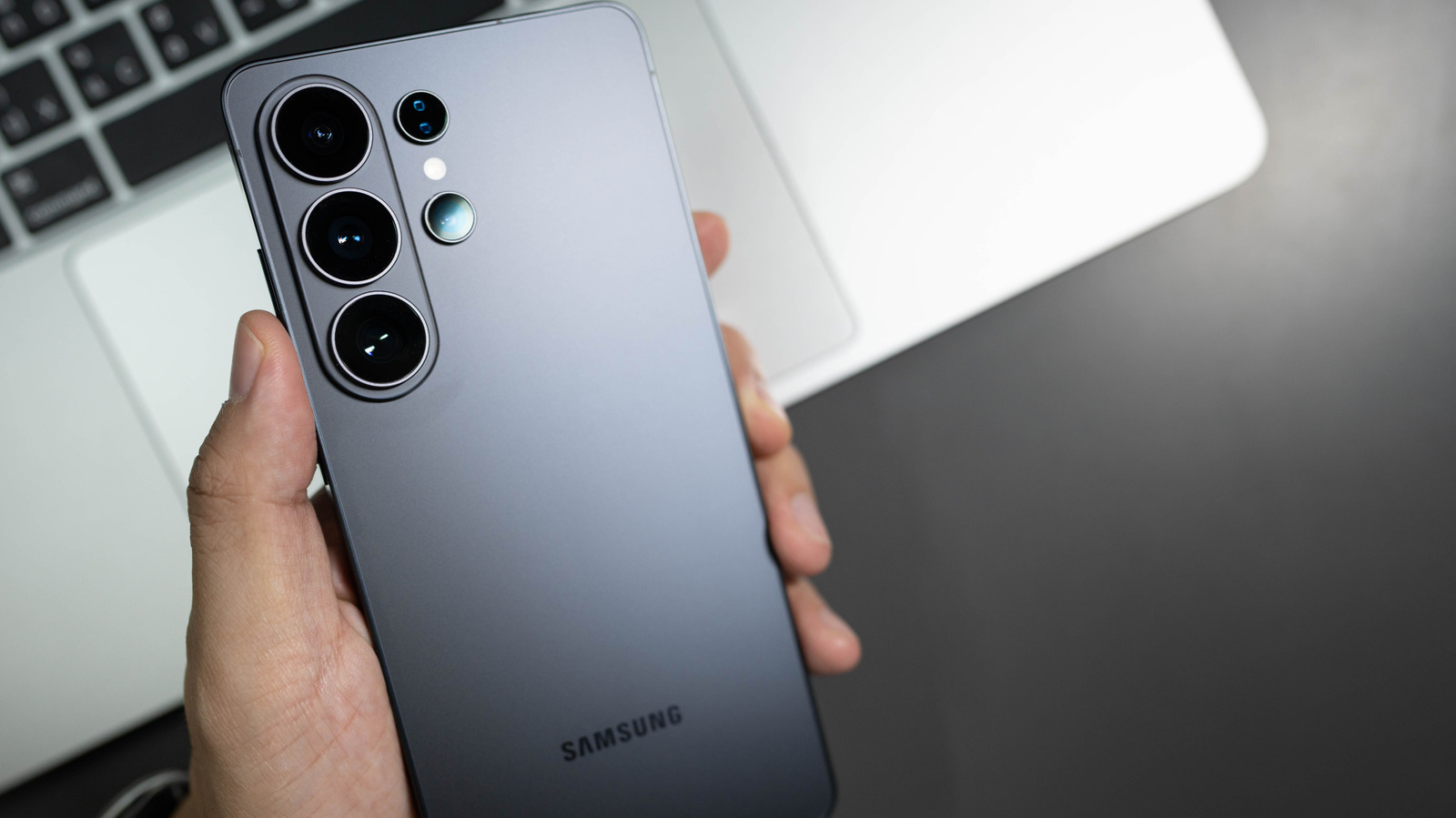
The side button on Samsung’s Galaxy phones has performed different functions over the years, but you can really make it do whatever you want. How to customize the side button on your Samsung Galaxy phone. Big Tech Samsung How to customize the side button on your Samsung Galaxy phone You might be surprised at all the things it can do.
That button beneath your Samsung phone’s volume button is actually a multifunctional and customizable side button. If you used any Samsung flagship phone between the S8 and S10, you probably noticed a fourth physical button on the side of the device: the infamous Bixby Button. That fourth button didn’t disappear; it actually got merged with the power button on Galaxy phones from the Note 10 series and beyond.
By default, a short press on the side button turns the screen on and off, a long press activates Samsung’s Bixby assistant, a double press opens the camera; long-pressing the side button plus volume-down button opens the power menu, and a short press of the same buttons takes a screenshot. The good news is that Samsung lets you remap nearly every action tied to the side button, so a phone that keeps accidentally summoning Bixby can instead open a favorite app with the same press. Even devices that still rock the dedicated Bixby button from the S8 to S10 era can be customized.
And everything can be done right in your phone’s settings, no super-secret menu or code needed.
Discover more from ChuckysCarnage
Subscribe to get the latest posts sent to your email.
 ChuckysCarnage