
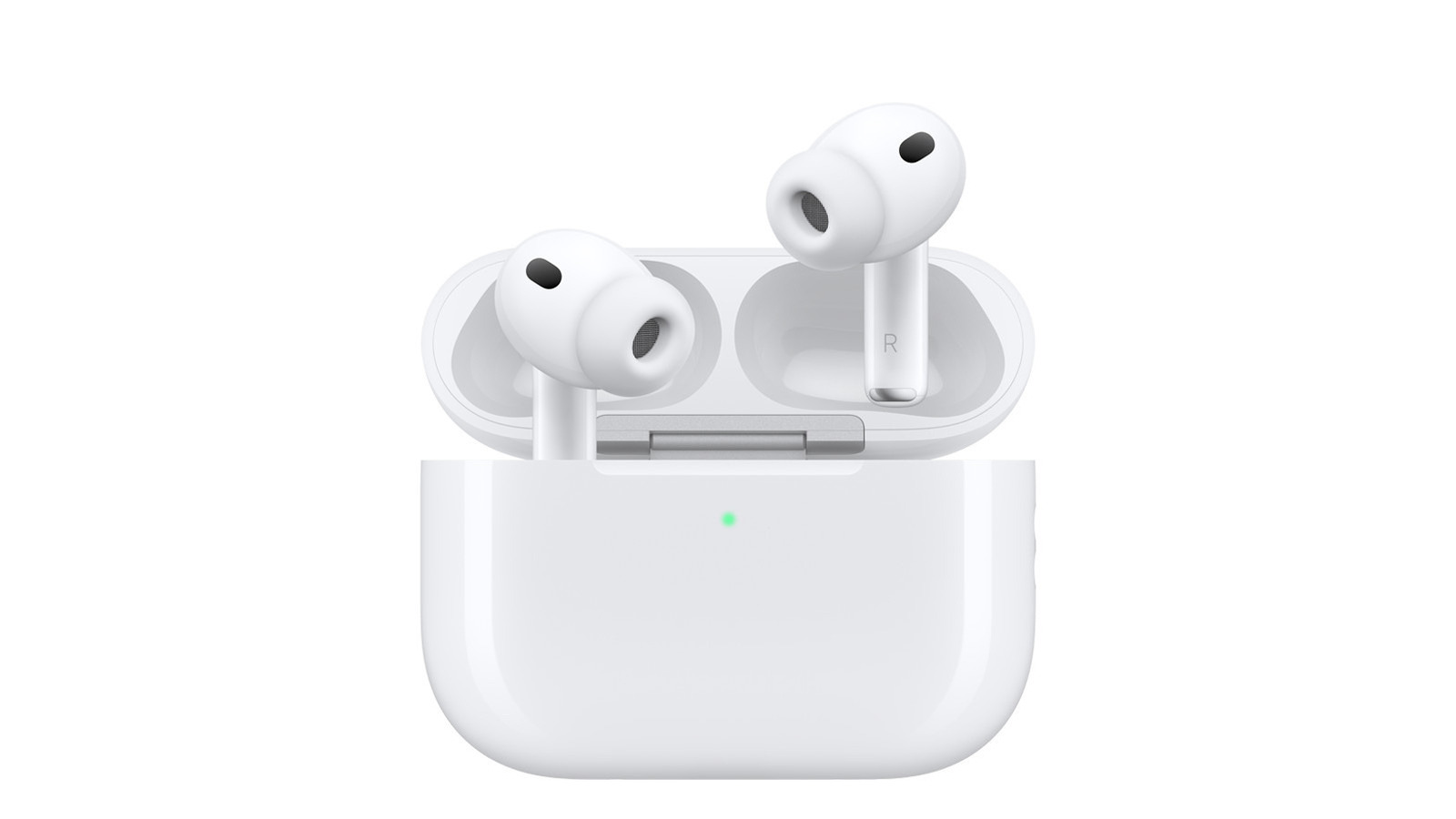
If you want to enhance the sound of your AirPods even further, we’ve got you. Let’s dig into some settings that will level up your listening experience. How to adjust the audio settings for your AirPods (and why you should).
Big Tech Apple How to adjust the audio settings for your AirPods (and why you should) They’re pretty great out of the box, but there are tweaks you might want to know about. What you can customize depends on what model you have, so we will specify which models have the features we discuss in this post. To start with, if you’re wondering why your AirPods suddenly sound different, it may be because you’ve accidentally switched "Listening Modes" without meaning to.
How to program Listening Mode Screenshot by Mariella Moon (Apple) On the AirPods 4 and on AirPods Pro models, you can switch between Active Noise Cancellation and Transparency mode, which lets ambient noise in, by pressing and holding the force sensor on the stem of your left or right earbud. If you pinch the stem of your AirPods in the front and back, you’ll feel it click. This mode-switching feature is on by default, but you can change it by going to the Settings app on your iPhone, iPad or Mac computer, then into the section that says [name] AirPods or AirPods Pro.
Take note that you must be using your AirPods or at least have their charging case open to be able to access this control center. In the device’s settings menu, scroll down to Press and Hold AirPods, where you’ll be able to customize Listening Mode for each earbud.
Discover more from ChuckysCarnage
Subscribe to get the latest posts sent to your email.

